

如何在 PowerPoint 中使用幻灯片母版
admin
2023-08-01 05:37:52
0次
- 点击进入:ChatGPT工具插件导航大全
如何在 PowerPoint 中编辑幻灯片母版
在 PowerPoint 中编辑幻灯片母版允许您为您创建的所有幻灯片创建统一的样式。
您需要在创建幻灯片之前编辑幻灯片母版,因为在您编辑幻灯片母版之前创建的任何幻灯片都将保留其原始格式。
要在 PowerPoint 中编辑幻灯片母版:
- 打开您的 PowerPoint 文档。
- 单击查看,然后单击幻灯片母版。

- 单击幻灯片中最顶部的缩略图这是幻灯片母版,下方的缩略图显示了各种布局选项。
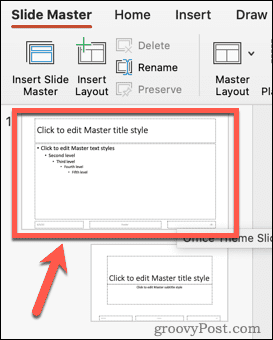

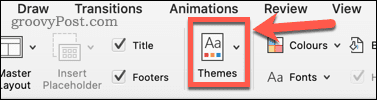
- 对幻灯片母版进行更改。更新幻灯片母版外观的最简单方法是单击主题。
- 如果您从其他地方保存了一些主题,请选择其中一个预设主题或单击“浏览主题”。
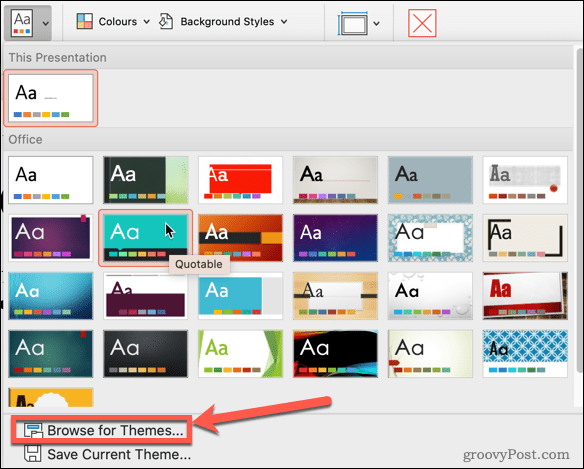
- 幻灯片母版下方的布局选项缩略图将更新以显示您的新主题。
- 如果要更改文本样式,请单击幻灯片母版缩略图并突出显示一些文本。
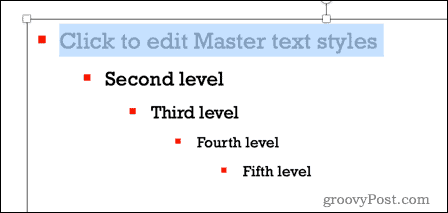
- 在主菜单下,您可以更改字体、字体大小、字体颜色等。这些更改将应用于幻灯片 窗格中的所有布局选项。
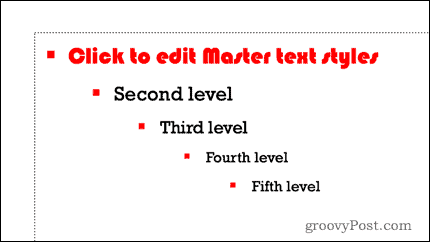
- 如果您希望特定布局具有与幻灯片母版不同的格式,您还可以通过单击其缩略图来编辑单个布局。
- 对更改感到满意后,在幻灯片母版视图中,单击关闭母版。
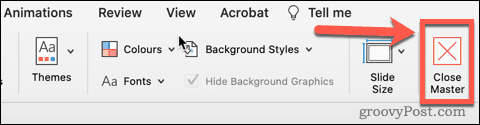
- 您的幻灯片母版现已更新。
如何在 PowerPoint 中使用幻灯片母版
现在您已经编辑了幻灯片母版,是时候使用它为您的演示文稿创建一些幻灯片了。
要在 PowerPoint 中使用幻灯片母版:
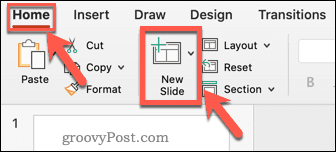
- 在主菜单中,单击新建幻灯片。
- 从其中一种布局选项中进行选择。
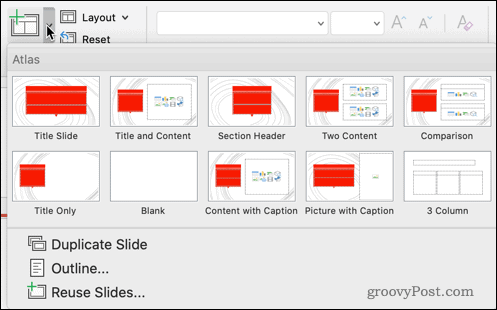
- 您的幻灯片将具有您为幻灯片母版设置的格式和主题。
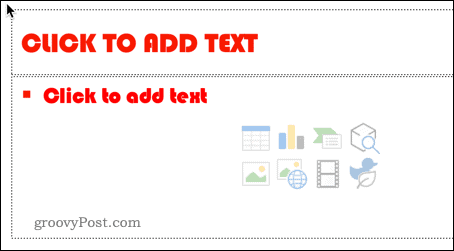
您可以根据需要多次编辑幻灯片母版。但是,您在进行更改之前添加到演示文稿中的任何幻灯片都将保留其原始格式。如果您希望它们具有更新的幻灯片母版格式,则需要再次创建这些幻灯片。
使用带样式的 PowerPoint
学习如何在 PowerPoint 中使用幻灯片母版可以帮助您的演示文稿脱颖而出。
创建引以为豪的 PowerPoint 后,您可以在其他演示文稿中导入和重复使用 PowerPoint 幻灯片。如果您对使用 Comic Sans 的决定感到后悔,您可以快速更改 PowerPoint 中所有幻灯片的字体。
相关内容
热门资讯
Windows 11 和 10...
Windows 11/10 文件夹属性中缺少共享选项卡 – 已修复
1.检查共享选项卡是否可用
右键...
事件 ID 7034:如何通过...
点击进入:ChatGPT工具插件导航大全 服务控制管理器 (SCM) 负责管理系统上运行的服务的活动...
Hive OS LOLMine...
目前不清退的交易所推荐:
1、全球第二大交易所OKX欧意
国区邀请链接: https://www.m...
Radmin VPN Wind...
Radmin VPN 是一款免费且用户友好的软件,旨在牢固地连接计算机以创建一个有凝聚力的虚拟专用网...
如何修复 Steam 内容文件...
Steam 内容文件锁定是当您的 Steam 文件无法自行更新时出现的错误。解决此问题的最有效方法之...
Hive OS 部署 PXE ...
目前不清退的交易所推荐:
1、全球第二大交易所OKX欧意
国区邀请链接: https://www.m...
如何在Instagram上扫描...
如何在Instagram上扫描名称标签/ QR?
总而言之,您可以通过大约四种不同的方法来扫描这些I...
在 Windows 11 中打...
什么是链路状态电源管理?
您可以在系统控制面板的电源选项中看到链接状态电源管理。它是 PCI Exp...
farols1.1.501.0...
faro ls 1.1.501.0(64bit)可以卸载,是一款无需连接外部PC机或笔记本计算机即可...
Hive OS 新建飞行表的方...
目前不清退的交易所推荐:
1、全球第二大交易所OKX欧意
国区邀请链接: https://www.m...