

如何在 Ubuntu 20.04 LTS 上安装 InvoicePlane
InvoicePlane 是一个免费使用的发票和客户管理 Web 应用程序,几乎任何个人或企业都可以按需开具发票。许多组织和自由职业者使用它来管理他们的付款和发票。它提供了自定义模板、主题和其他工具,可帮助您增加 InvoicePlane 的功能。它还支持多种语言和多种支付提供商,例如 Paypal,甚至通过 Coinbase 支持比特币。
在 Ubuntu 20.04 LTS Focal Fossa 上安装 InvoicePlane
apt步骤 1. 首先,通过在终端中运行以下命令,确保所有系统包都是最新的。
sudo apt update
sudo apt upgrade
步骤 2. 安装 LAMP 堆栈。
需要 Ubuntu 20.04 LAMP 服务器。如果您没有安装 LAMP,您可以在此处按照我们的指南进行操作。
步骤 3. 在 Ubuntu 20.04 上安装 InvoicePlane。
默认情况下,InvoicePlane 在 Ubuntu 20.04 基础存储库中不可用。现在我们使用以下命令下载最新版本的 InvoicePlane:
wget -c -O v1.5.11.zip https://invoiceplane.com/download/v1.5.11
接下来,解压下载的文件:
mkdir /var/www/html/invoiceplane
unzip v1.5.11.zip -d /var/www/html/invoiceplane
然后,更改目录并使用以下命令编辑文件:ipconfig.php
cd /var/www/html/invoiceplane
cp ipconfig.php.example ipconfig.php
cp htaccess .htaccess
nano ipconfig.php
添加以下文件:
IP_URL=http://invoice.your-domian.com
DB_HOSTNAME=localhost
DB_USERNAME=invplane
DB_PASSWORD=password
DB_DATABASE=invplanedb
DB_PORT=3306
我们将需要更改一些文件夹权限:
chown -R www-data:www-data /var/www/html/invoiceplane/
chmod -R 755 /var/www/html/invoiceplane/
步骤 4. 为 PrestaShop 配置 MariaDB。
默认情况下,MariaDB 未加固。mysql_secure_installation您可以使用脚本保护 MariaDB 。您应该仔细阅读下面的每个步骤,这些步骤将设置 root 密码、删除匿名用户、禁止远程 root 登录、删除测试数据库和访问安全 MariaDB:
mysql_secure_installation
像这样配置它:
- Set root password? [Y/n] y
- Remove anonymous users? [Y/n] y
- Disallow root login remotely? [Y/n] y
- Remove test database and access to it? [Y/n] y
- Reload privilege tables now? [Y/n] y
接下来,我们需要登录 MariaDB 控制台并为 InvoicePlane 创建一个数据库。运行以下命令:
mysql -u root -p
这将提示您输入密码,因此请输入您的 MariaDB 根密码并按 Enter。登录到数据库服务器后,您需要为 InvoicePlane 安装创建一个数据库:
MariaDB [(none)]> CREATE DATABASE invplanedb;
MariaDB [(none)]> CREATE USER \'invplane\'@\'localhost\' IDENTIFIED BY \'your-strong-password\';
MariaDB [(none)]> GRANT ALL PRIVILEGES ON invplanedb.* TO \'invplane\'@\'localhost\';
MariaDB [(none)]> FLUSH PRIVILEGES;
MariaDB [(none)]> EXIT
步骤 5. 配置 Apache。
现在我们在 Apache 中创建一个新的虚拟主机指令。例如,在您的虚拟服务器上创建一个名为 \’ \’ 的新 Apache 配置文件:invoiceplane.conf
nano /etc/apache2/sites-available/invoiceplane.conf
添加以下行:
     ServerAdmin admin@your-domain.com
     DocumentRoot /var/www/html/abantecart
     ServerName invoice.your-domain.com


          Options +FollowSymlinks
          AllowOverride All
          Require all granted

     ErrorLog ${APACHE_LOG_DIR}/error.log
     CustomLog ${APACHE_LOG_DIR}/access.log combined
现在,我们可以重新启动 Apache 网络服务器,以便进行更改:
sudo a2ensite invoiceplane.conf
sudo a2enmod rewrite
sudo systemctl restart apache2
步骤 6. 设置 HTTPS。
我们应该在 PrestaShop 上启用安全的 HTTPS 连接。我们可以从 Let\’s Encrypt 获得免费的 TLS 证书。从 Ubuntu 20.04 存储库安装 Let\’s Encrypt 客户端(certbot):
sudo apt install certbot python3-certbot-apache
接下来,运行以下命令以使用 Apache 插件获取免费的 TLS 证书:
certbot --apache -d invoice.your-domian.com
您将被要求提供您的电子邮件并接受服务条款:
Enabled Apache rewrite module
Redirecting vhost in /etc/apache2/sites-enabled/invoice.conf to ssl vhost in /etc/apache2/sites-available/invoice-le-ssl.conf

- - - - - - - - - - - - - - - - - - - - - - - - - - - - - - - - - - - - - - - -
Congratulations! You have successfully enabled https://invoice.your-domain.com

You should test your configuration at:
https://www.ssllabs.com/ssltest/analyze.html?d=invoice.your-domain.com
- - - - - - - - - - - - - - - - - - - - - - - - - - - - - - - - - - - - - - - -

IMPORTANT NOTES:
 - Congratulations! Your certificate and chain have been saved at:
   /etc/letsencrypt/live/invoice.your-domain.com/fullchain.pem
   Your key file has been saved at:
   /etc/letsencrypt/live/invoice.your-domain.com/privkey.pem
   Your cert will expire on 2022-04-23. To obtain a new or tweaked
   version of this certificate in the future, simply run certbot again
   with the \"certonly\" option. To non-interactively renew *all* of
   your certificates, run \"certbot renew\"
 - If you like Certbot, please consider supporting our work by:

   Donating to ISRG / Let\'s Encrypt:   https://letsencrypt.org/donate
   Donating to EFF:                    https://eff.org/donate-le
如果测试成功,请重新加载 Apache 以使更改生效:
sudo apache2ctl -t
sudo systemctl reload apache2
步骤 7. 访问 InvoicePlane Web 界面。
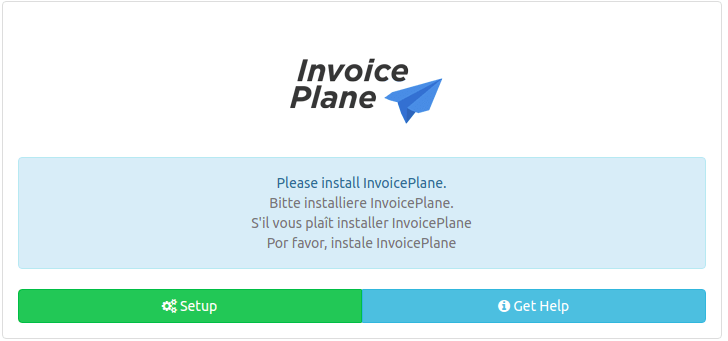
成功安装后,打开您的 Web 浏览器并使用 URL 访问 InvoicePlane Web 界面。您应该看到以下页面:https://invoice.your-domain.com

感谢您使用本教程在 Ubuntu 20.04 LTS Focal Fossa 系统上安装 InvoicePlane。如需其他帮助或有用信息,我们建议您查看InvoicePlane 官方网站。